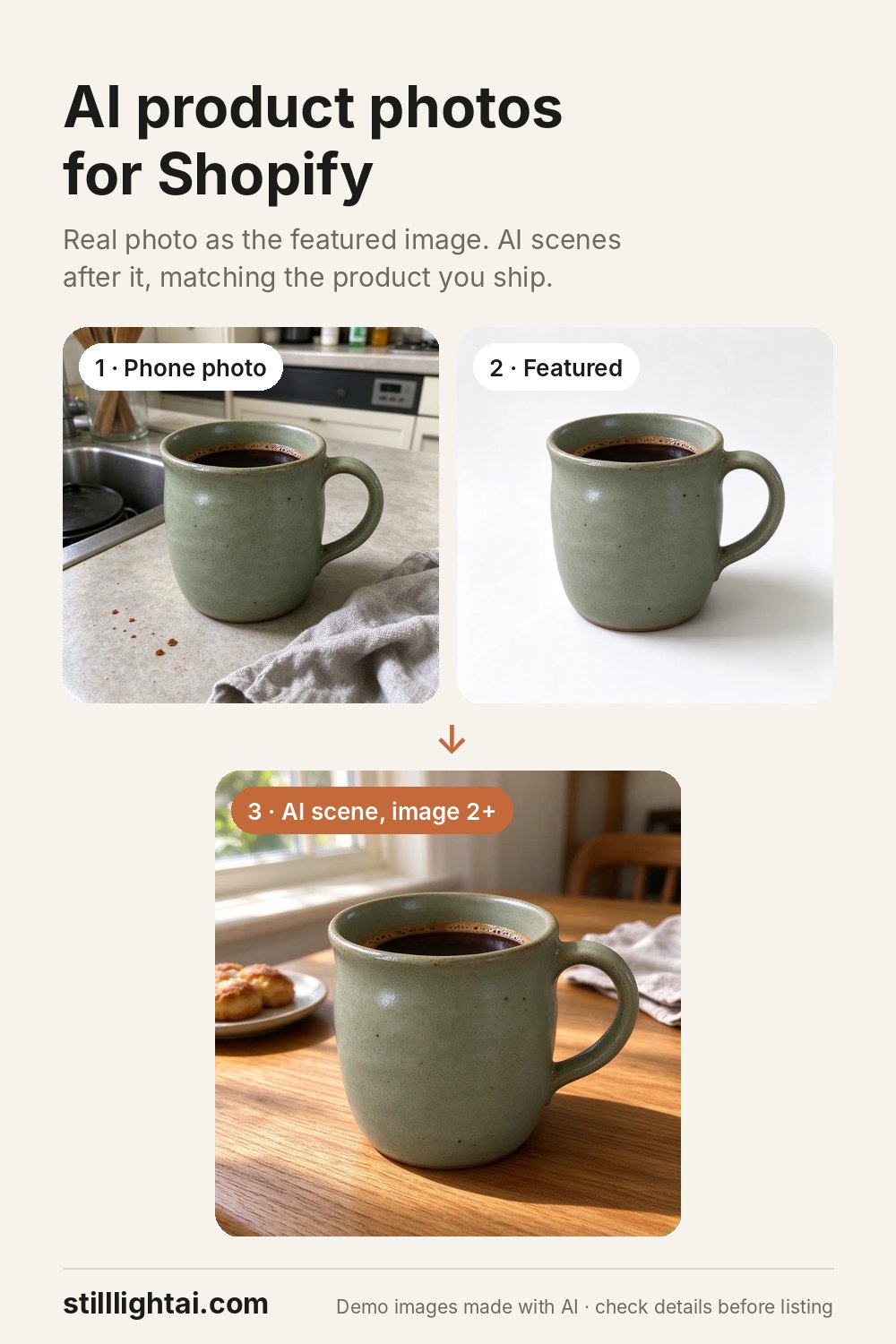
AI product photos for Shopify: main image, scene shots and sizes
On Shopify, make the first (featured) image a clear photo of the real product on white or a plain surface, keep every featured image the same aspect ratio (Shopify says 2048×2048 px usually displays best), and add AI scene shots after it in the gallery. Shopify does not ask for an unedited photo, but Etsy and Google Shopping have their own rules, so keep a real photo of every product and make sure each AI scene still matches what you ship.
Try it free on your product photo
Only need a white background? Use the free tool
Practical advice, not legal advice. Check the platform’s latest rules before you publish.
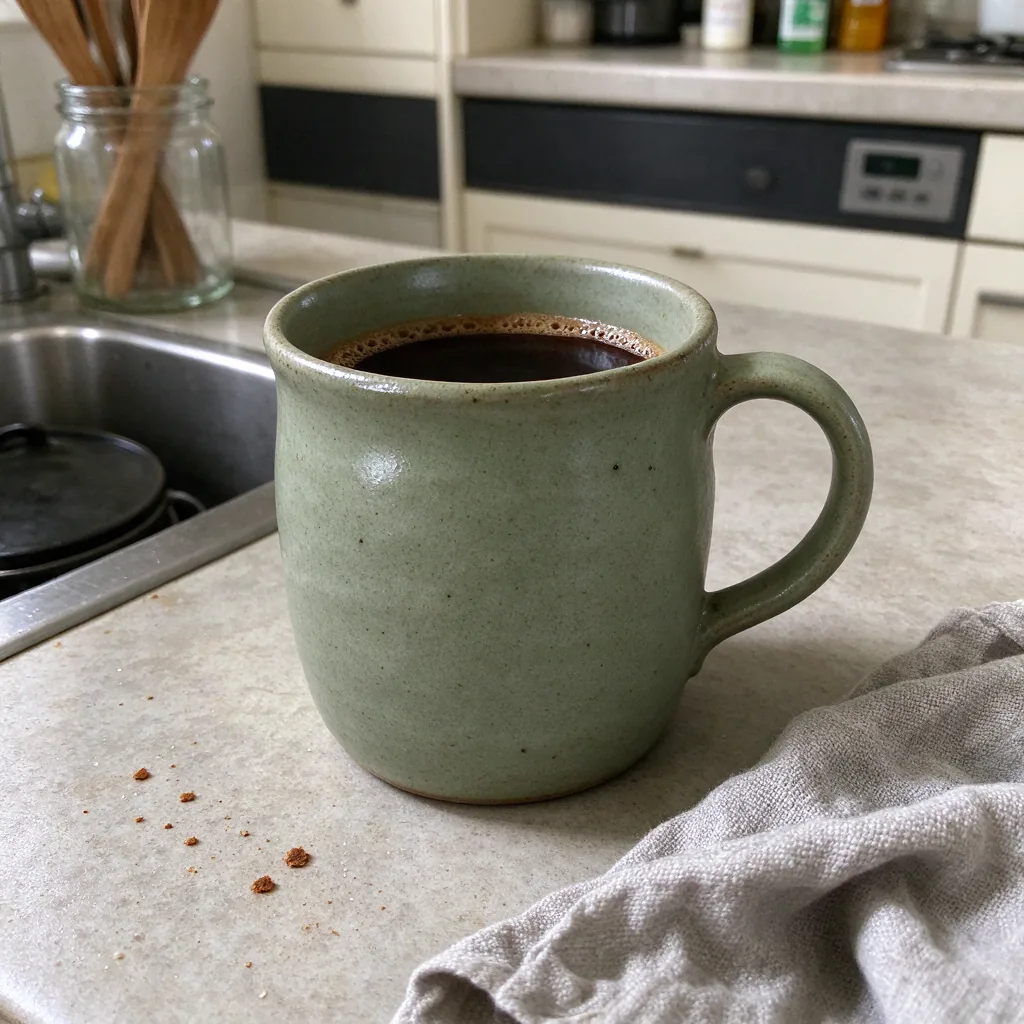 Before
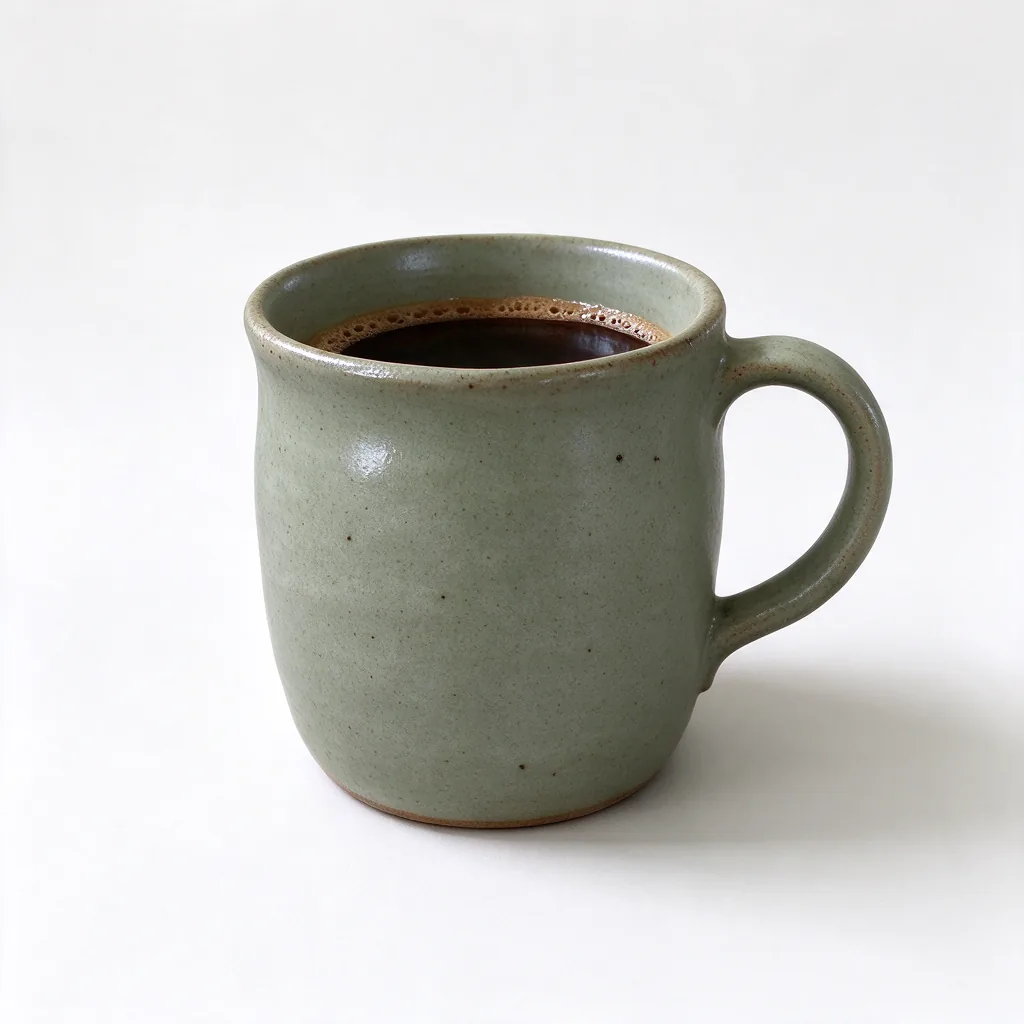 Featured
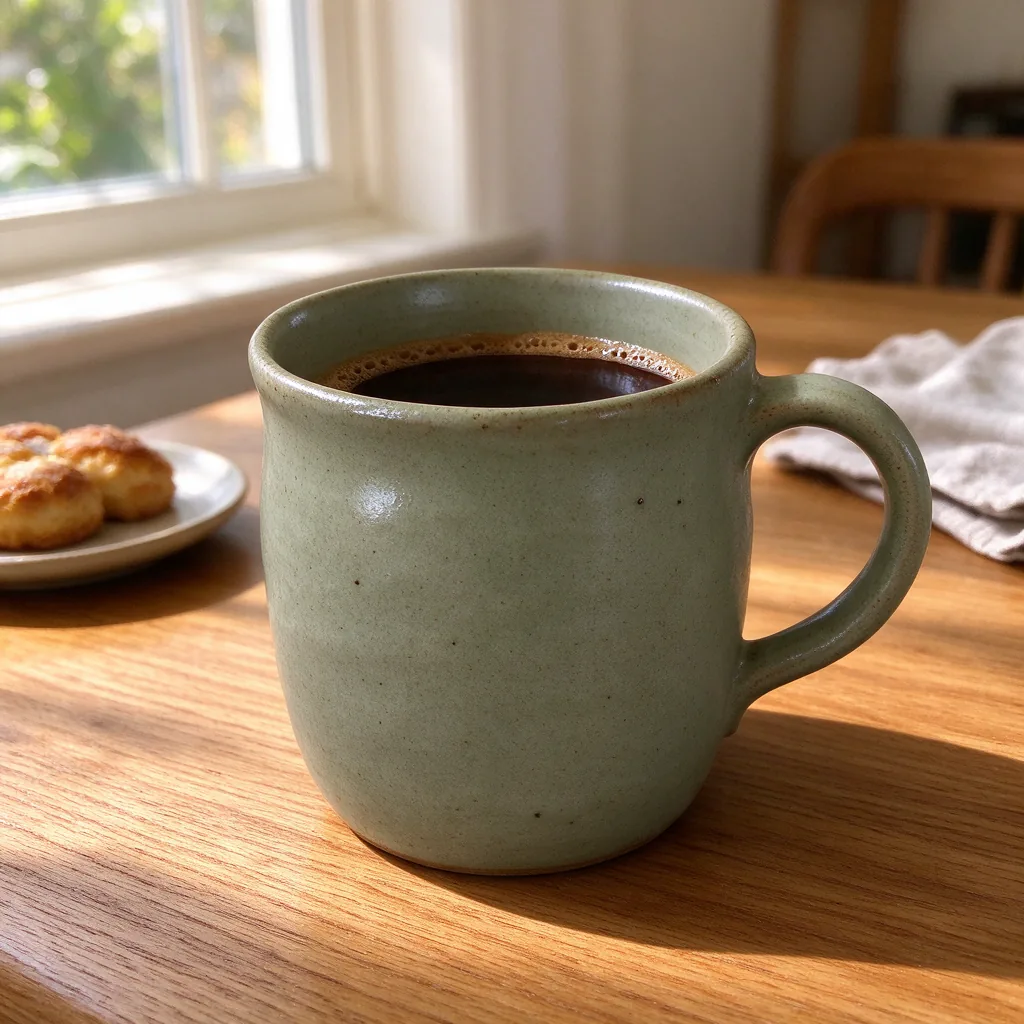 AI scene
Which image goes where on a Shopify product page
The first image is the featured image that themes show on collection pages; the rest form the gallery. A plan for a candle, earrings or a mug:
| Slot | Image | AI scene? |
|---|---|---|
| 1 | Featured: the product alone on white or a plain surface, same ratio as your other products. | A cut-out on white is fine; no generated scene |
| 2 | In use or in its setting: a lit candle on a side table, earrings on a linen dish. | Yes, if accurate |
| 3 | Scale: in a hand or next to a mug. | Real photo is safer |
| 4 | Close-up of the label, stone, clasp or texture. | Real photo is safer |
| 5 | Gift or seasonal scene, swapped out after the season. | Yes, if accurate |
| Variants | One image per colour or scent, assigned to that variant. | Only a real photo of that variant |
Each Shopify variant can have only one assigned image, so keep its other photos next to it in the gallery. Never let AI recolour one product into another variant.
Sizes and formats Shopify accepts
| Item | Shopify Help Center, checked 2 Nov 2026 |
|---|---|
| Best square size | 2048×2048 px usually displays best |
| Largest image | 5000×5000 px or 25 megapixels, under 20 MB |
| Formats | JPEG, PNG, WEBP, HEIC, GIF |
| Aspect ratio | 100:1 to 1:100; use one ratio for all featured images |
Theme tips and compression: Shopify product image size.
Step by step
- Shoot one real photo. Phone, window light, in focus. It is your colour reference.
- Make the featured image. The free white background tool exports 2000×2000 on pure white, no watermark; the photo never leaves your device.
- Pick a scene. Upload the same photo to the studio: AI suggests 3 scenes for your product and shows a free preview, no sign-up.
- Make it full size. A Seedream 5.0 Flash image uses 2 credits; 3 free credits cover the first. Sign up free to remove the watermark.
- Check every detail. Zoom in: label text, logo, stone colour, jar shape, size.
- Upload to Shopify. Products → Media: featured image first, assign variant images, add short alt text.
Shopify’s built-in AI editor or Stilllight?
Shopify has its own media generation in the file editor; if you need only a few backgrounds, try it first.
| Shopify media generation | Stilllight | |
|---|---|---|
| What it does | Colour or transparent background, a scene from a short prompt, extend the background | Suggests 3 scenes for your product, or describe your own |
| Output size | About 1 megapixel by default | Up to 2K with an account |
| Price | No extra cost on all plans “for a limited time” | Free preview; 2 credits per Flash image; packs from $4.90 |
| Where | Inside Shopify admin | In the browser; you upload the files to Shopify, Etsy or Amazon |
Shopify adds an invisible watermark to generated images. Stilllight is not a Shopify app.
Price and credit cost
| Option | Cost |
|---|---|
| Scene preview | Free, 512 px, watermarked, 2 a day |
| First full-size image | 3 free credits, no card; Flash uses 2 |
| Packs | First pack $4.90 for 60 credits (within 48 hours of sign-up); then $4.90 for 40, $16.90 for 200, $39.90 for 600 |
| Per image | 2 credits with Flash, 4–6 with Seedream 5.0 Pro |
Pack credits do not expire; failed images are refunded. Images made after buying a pack include commercial use; free-credit images are for personal use (terms).
Also selling on Etsy or Google Shopping?
- Etsy. Since 22 October 2026 most listings need one unedited photo of the real item on a real background. Never use an AI image for it: see Etsy’s unedited photo rule.
- Google Merchant Center. No promotional text, watermarks or borders; 1500×1500 px or larger recommended; AI-generated images must keep metadata marking them as AI (such as IPTC DigitalSourceType). We have not confirmed Stilllight downloads carry that tag, so send your real photo or white cut-out as the main image.
What Stilllight is not good at
- Small text and logos can warp. Always zoom in.
- Exact colours of pastel wax, stones and metals can shift.
- Big catalogues: scenes are made one product at a time; only the white background tool has batch mode (20 photos).
Questions
Can I use AI product photos on Shopify?
Yes. Shopify’s help pages do not ask for an unedited photo. Keep the featured image a clear photo of the real product, use AI scenes as extra images, and make sure every image matches what the buyer receives.
What size should Shopify product photos be?
2048×2048 pixels usually displays best for square images, per Shopify. Use one aspect ratio for every featured image.
Should the Shopify featured image be an AI scene?
We recommend a real photo or a cut-out on white. Shoppers compare featured images on collection pages, and Google Shopping has its own main-image rules, including metadata on AI-generated images.
Is Shopify’s own AI image editor free?
Shopify’s help page says media generation in the file editor is available on all plans at no additional cost for a limited time. Its default output is about 1 megapixel.
Sources
- Shopify Help: Product media types
- Shopify Help: Uploading files
- Shopify Help: Images for variants
- Shopify Help: Media generation
- Google Merchant Center: Image link
- Etsy policy: Listing Image Requirements (22 Oct 2026)
Checked 2 November 2026. Rules change, so check the platform’s latest rules before you publish. The image plan is our own advice.
Try it free on your product photo
Only need a white background? Use the free tool
Save this guide for later